 ← All Guides
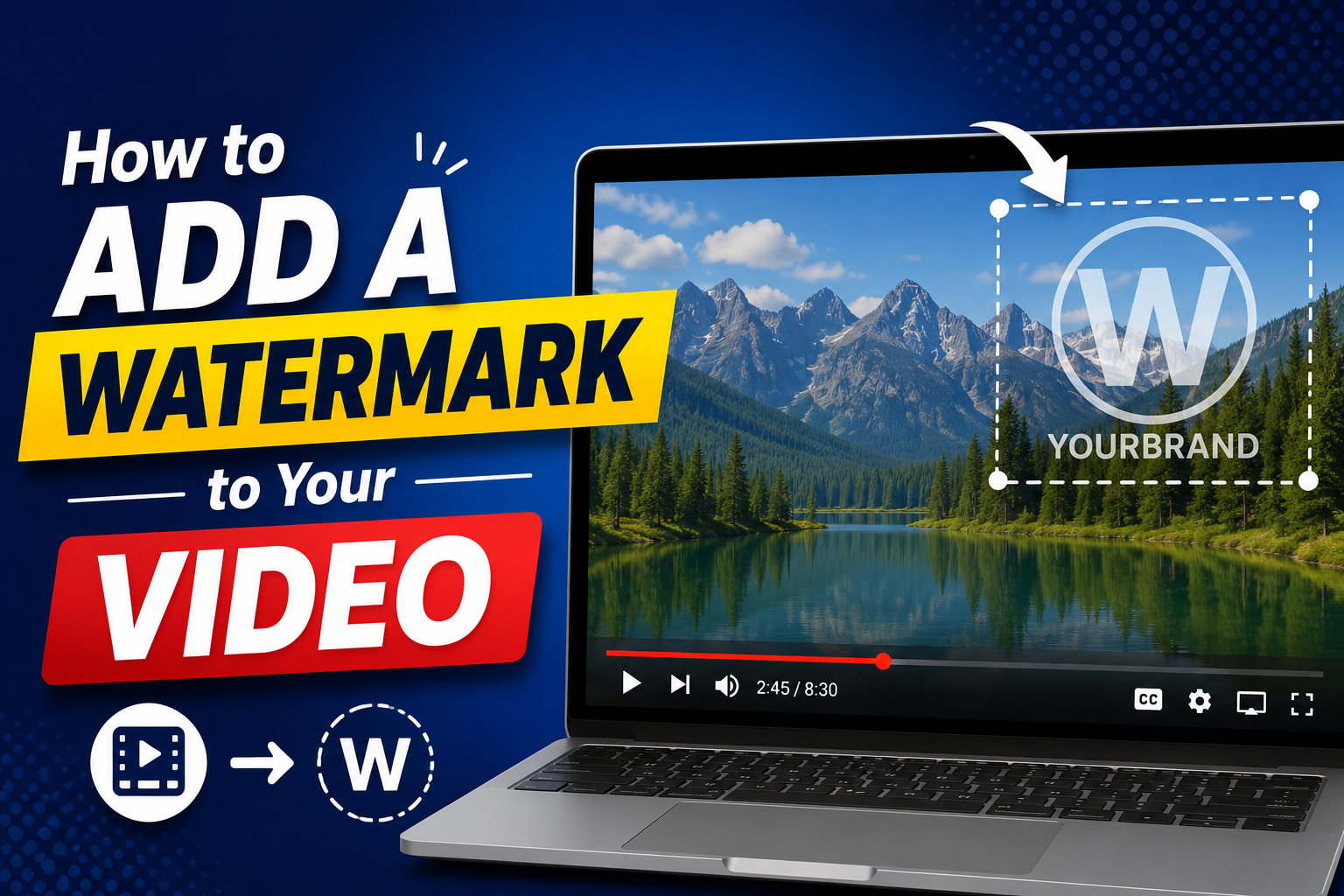
Adding a watermark to your video is one of the simplest ways to protect your content and build brand recognition. Whether it is a logo in the corner or a subtle text overlay, a watermark tells viewers who made the video and helps prevent unauthorized redistribution without credit.
CreatorMedia Studio's Video Editor allows you to add both image (PNG) watermarks and text overlays to any video, with full control over position, size, and opacity.
An image watermark uses your logo or brand graphic (PNG format with transparency recommended). This looks the most professional and is instantly recognizable.
A text watermark is simpler — just type your channel name or website URL. It requires no extra assets and can be customized with different fonts and styles.
From the dashboard, open Video Editor for full editing, or Video Fix for quick adjustments. Both support watermark overlays.
Click the video upload area and select your video file. The video will load in the preview panel on the left side.
In the Logo/Watermark section of the settings panel, click to upload your PNG logo file. Transparent PNG files work best as the background will be invisible.
Drag the logo overlay on the video preview to position it exactly where you want. Common positions are the bottom-right corner or the top-right corner.
Use the size slider to scale the logo. Adjust opacity to make the watermark subtle (30–50%) or clearly visible (80–100%).
Click the process button. The watermark is burned into the video permanently. Download the output file when complete.