 ← All Guides
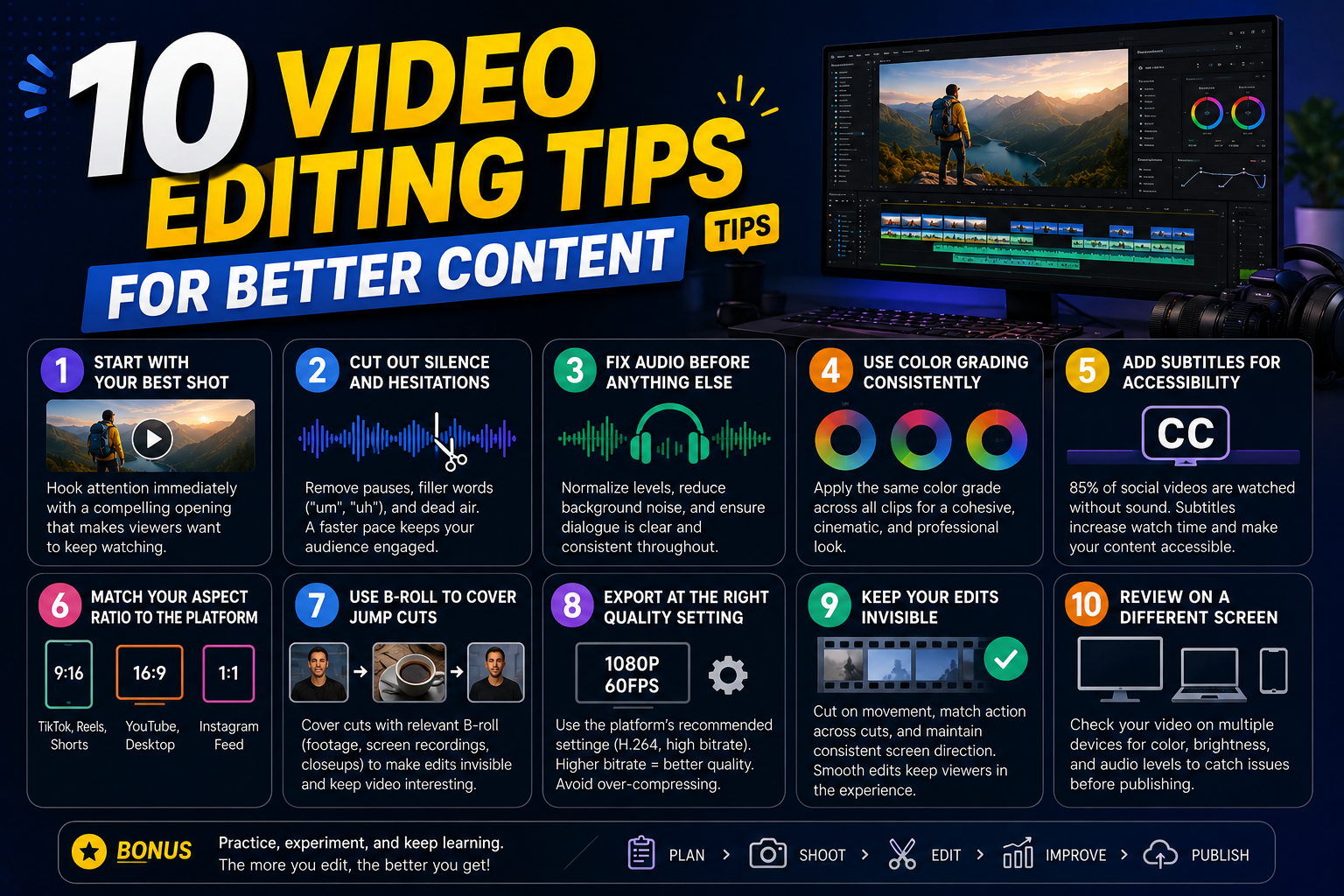
Good video editing is not just about cutting clips together. It involves pacing, audio quality, visual consistency, and knowing what to remove as much as what to keep. Whether you are a beginner or have been editing for years, these 10 practical tips will help you produce more professional and engaging videos.
The first few seconds determine whether viewers stay or leave. Do not bury your most interesting footage in the middle — open with a compelling moment that hooks attention immediately.
Long pauses, filler words ("um", "uh"), and dead air make videos feel slow. Trim aggressively — a faster pace keeps viewers engaged. Most good talking-head videos cut every pause longer than 0.5 seconds.
Viewers will tolerate mediocre video quality but they will leave immediately if the audio is bad. Normalize your audio levels, reduce background noise, and ensure dialogue is clear and consistent throughout.
Apply the same color grade across all clips in a video for a cohesive look. Even subtle adjustments — slightly warmer shadows, lifted blacks, or a slight teal in the highlights — can make your content look cinematic and professional.
85% of social media videos are watched without sound. Adding subtitles dramatically increases watch time and makes your content accessible to viewers with hearing impairments or who are in noisy environments. Use an AI subtitle generator to save time.
Use 9:16 (vertical) for TikTok, Reels, and YouTube Shorts. Use 16:9 (horizontal) for YouTube and desktop viewing. Use 1:1 (square) for Instagram feed posts. Publishing the wrong ratio leaves black bars that reduce the viewing experience.
When you need to cut out a section of talking-head footage, covering the cut with relevant B-roll footage (closeups, screen recordings, related clips) makes the edit invisible. It also keeps the visual experience varied and interesting.
Higher bitrate means larger file size but better quality. For YouTube, export at the platform's recommended settings (H.264, high bitrate). Compressing too aggressively introduces visible artifacts especially in areas with motion or detail.
The best editing is editing viewers do not notice. Cut on movement, match the action across cuts, and maintain consistent screen direction. Jarring cuts that break the visual flow pull viewers out of the experience.
Always watch your final edit on a different device before publishing — phone, TV, or laptop. Colors look different on different screens. Audio that sounds fine on studio monitors may be too quiet on phone speakers. Catching these issues before publishing saves embarrassment.
Use CreatorMedia Studio's free tools to apply color grading, subtitles, blur effects, and more
Open the Studio →